How to integrate a quiz with Kommo
A step-by-step integration guide
To set up lead submission to Kommo, follow these steps:
-
Firstly, ensure that you have administrator rights in your Kommo account.
-
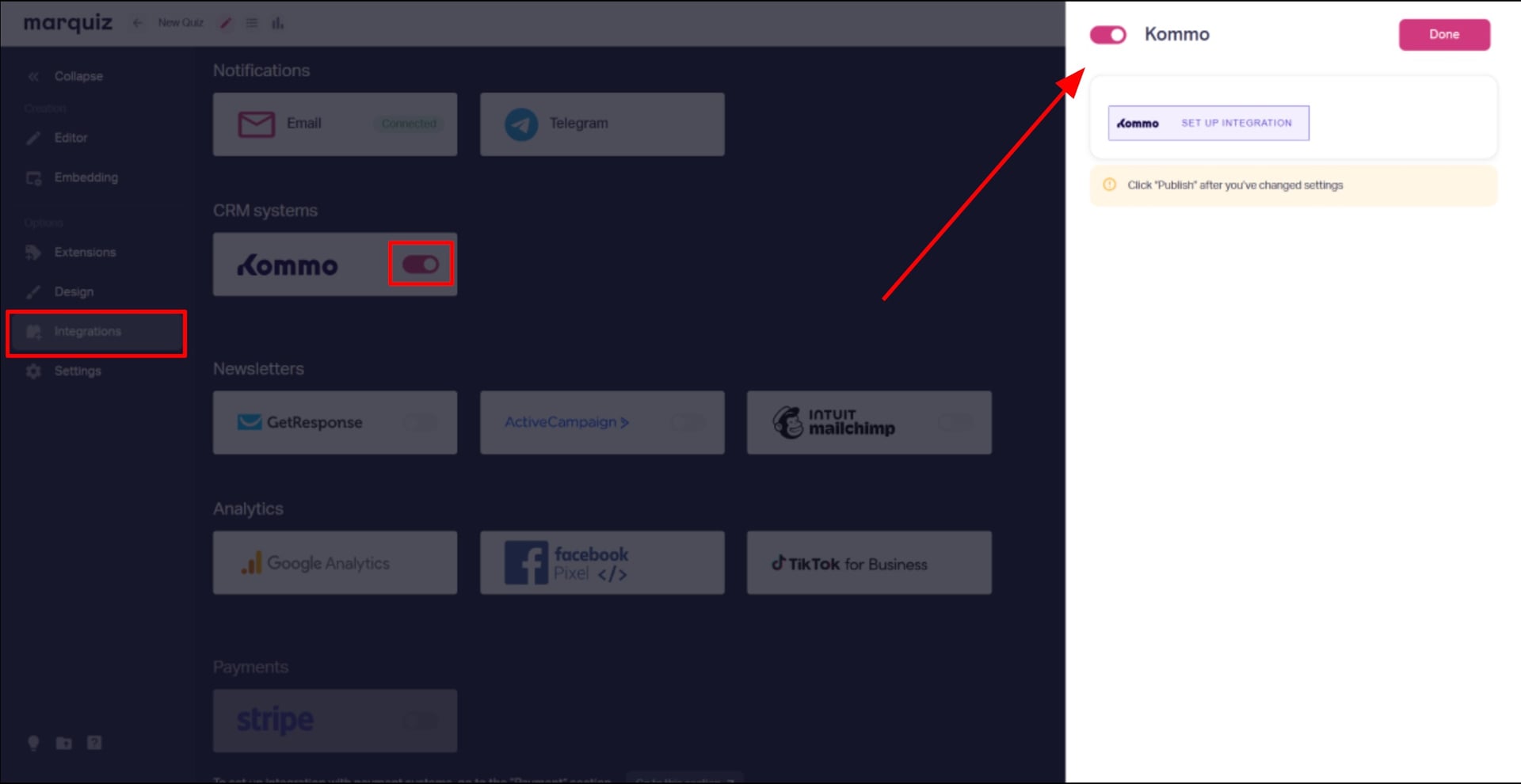
Go to the “Integrations” tab → select the Kommo tile → toggle the switch to “Active” → click “Install Integration”.
-
Select your Kommo account and click “Allow”. Once loaded, all your data will be synchronised with your dashboard. Now select: - Pipeline - Pipeline stage - Responsible user
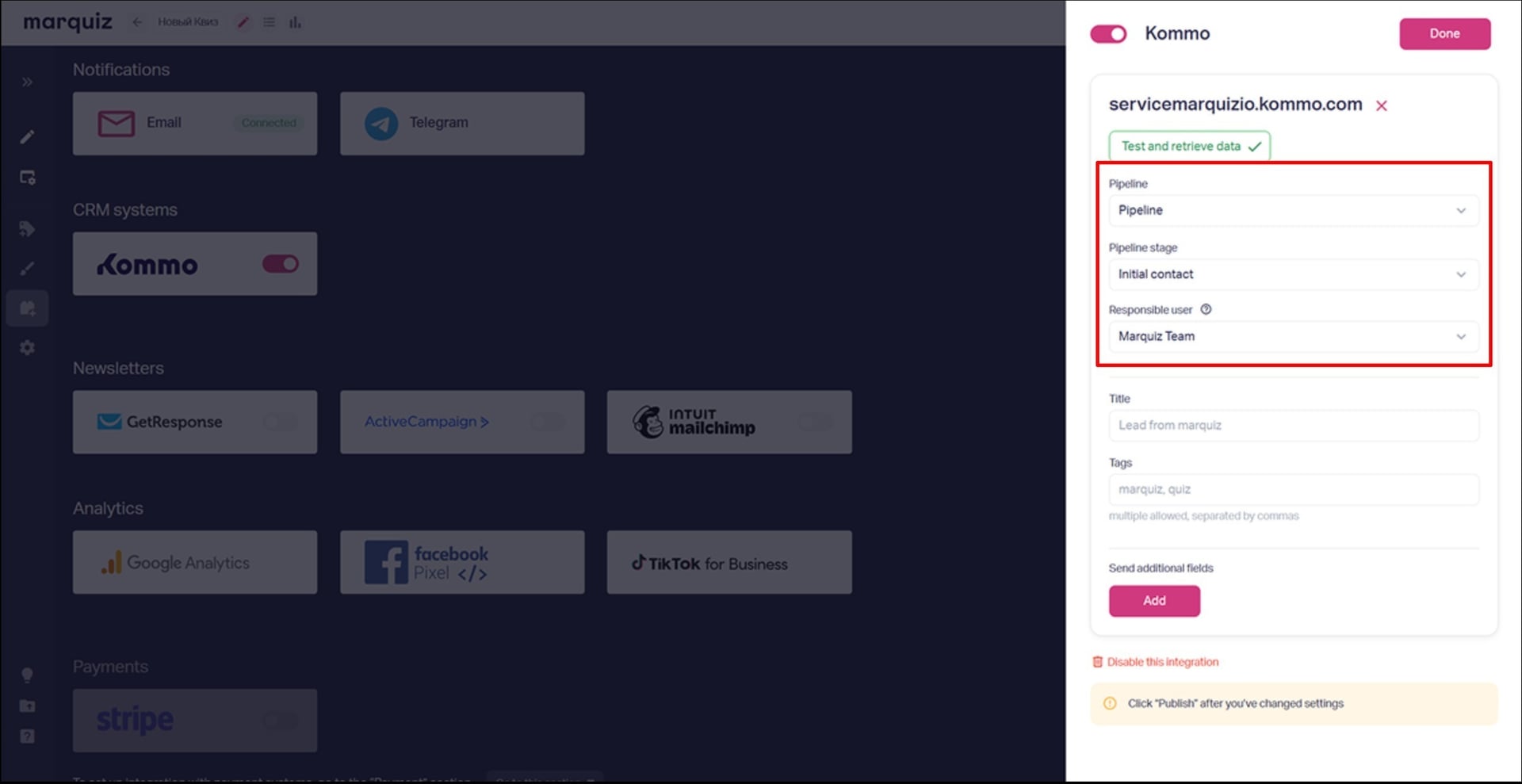
You can also configure the following here: - Lead title: this will appear in the lead profile - Tags (separate multiple tags by commas)
-
Once you have completed the setup process, click “Done” and then “Publish” in quiz.
Additional settings:
You can map custom fields (text fields only):
- UTM parameters (source, medium, campaign, etc.).
- Analytics IDs (e.g. Google Analytics).
- Contact form fields (Name, Email, Phone).
- Quiz results.
- Referrer data.
Important: custom fields must be created in the main Kommo section (not in the Contact/Company fields).
How it works 🚀
✔ Creates contacts and leads automatically
✔ Adds quiz answers as lead notes
✔ Syncs data in real time