Clearing browser cache and local storage
How to clear browser cache and local storage
Clearing cache and local storage helps fix loading issues and refresh website data.
Important: logins, passwords, and account data stay intact — we don’t clear cookies.
Clear browser cache
Google Chrome
1. Open Chrome. 2. Click the three dots in the top-right corner → select «Settings». 3. Go to «Privacy and security». 4. Open «Delete browsing data». 5. In the window: - Select a time range → «All time», - Enable «Cached images and files», - Disable «Cookies and other site data». 6. Click «Delete from this device».
Microsoft Edge
1. Open Edge. 2. Click the three dots → «Settings». 3. Go to «Privacy, search, and services». 4. Open «Clear browsing data». 5. Click «Choose what to clear». 6. In the window: - Select time range → «All time», - Enable «Cached images and files», - Disable «Cookies and other site data». 7. Click «Clear now».
Safari
1. Open Safari. 2. In the top menu, select Safari → «Preferences». 3. Go to the «Extensions» tab. 4. Enable «Show Develop menu in menu bar». 5. In the top menu, open «Develop». 6. Click «Clear Cache».
Mozilla Firefox
1. Open Firefox. 2. Click ☰ → «Settings». 3. Go to «Privacy & Security». 4. In «Cookies and Site Data» section, click «Clear browsing data». 5. In the window: - Select time range → «Everything», - Enable «Temporary cached files and pages», - Disable «Cookies and site data». 6. Click «Clear».
Opera
1. Open Opera. 2. Click ☰ → «Go to full browser settings». 3. Go to «Privacy & Security». 4. Open «Delete browsing data». 5. In the window: - Select time range → «All time», - Enable «Cached images and files», - Disable «Cookies and other site data» 6. Click «Delete data».
Clear local storage on Marquiz
Use this if:
- the website loads but works incorrectly,
- data doesn’t update,
- clearing cache didn’t help.
Windows
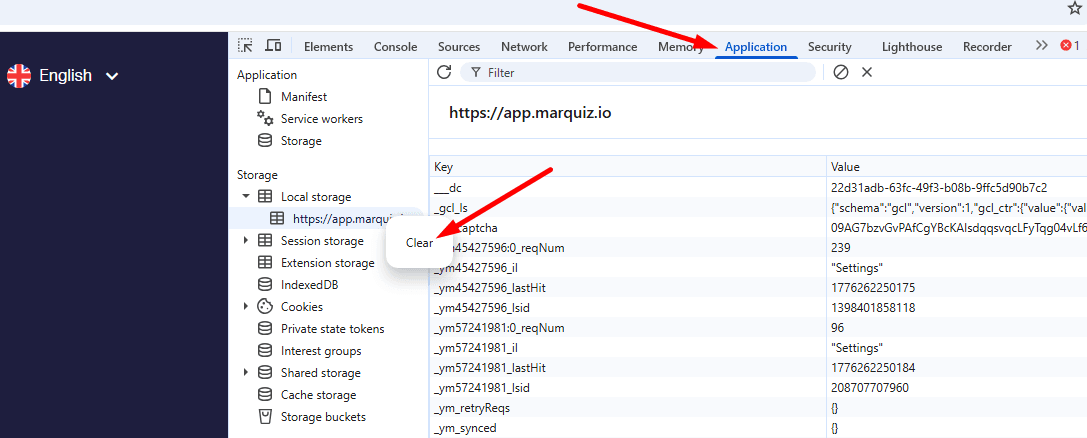
1. Press Ctrl+Shift+J 2. Go to Applications → Storage → Local Storage 3. Right-click on app.marquiz.io → Clear 4. Refresh the page (F5 or Ctrl + R)
macOS
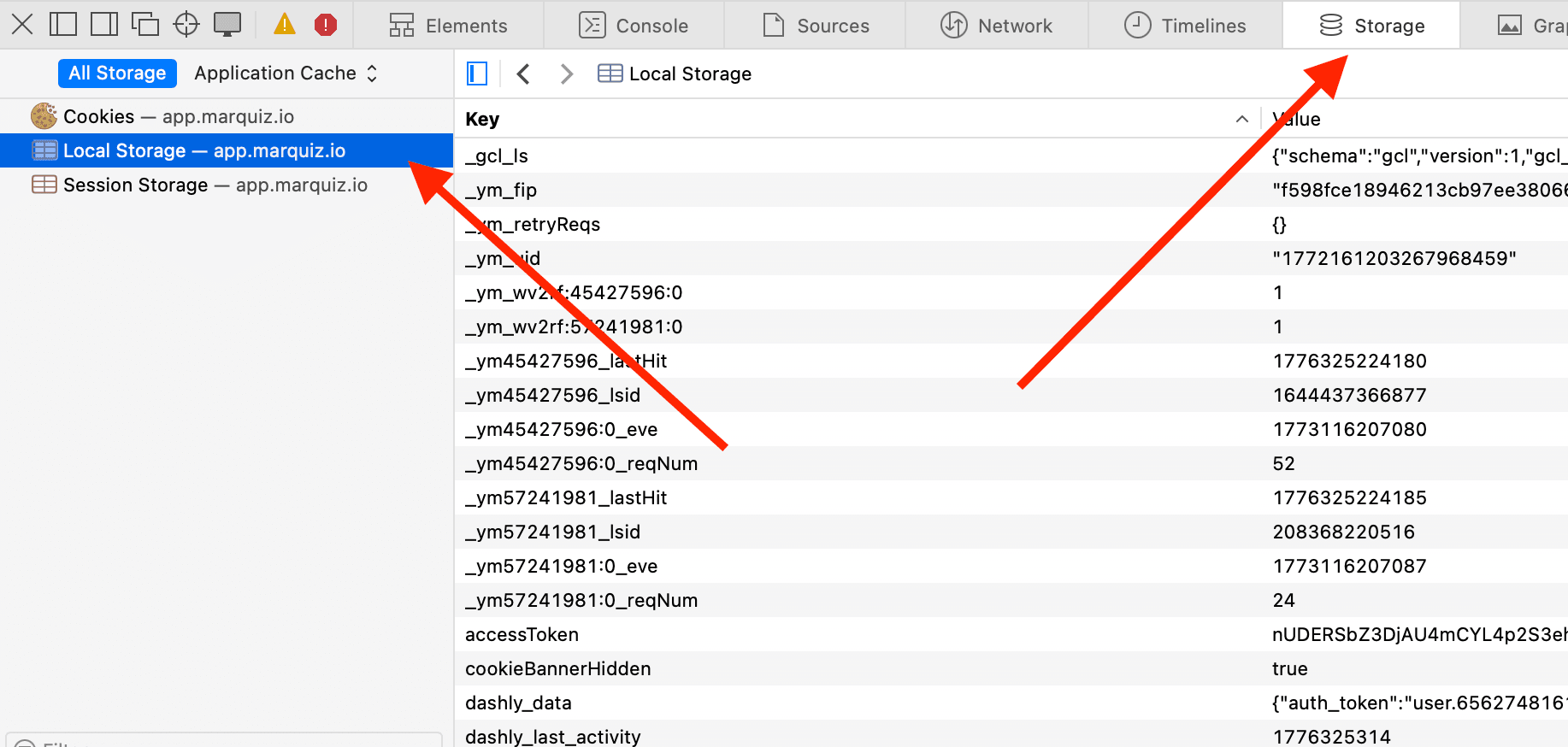
1. Press Cmd + Opt + J (in Safari — Cmd + Opt + C). 2. Go to Applications → Storage → Local Storage. 3. Right-click on app.marquiz.io → Clear. 4. Refresh the page (Cmd + R).
Result
Done. Cache and local storage are cleared — the website should work correctly.
If the issue persists, contact support.