How to add a Google Drive video to a quiz
Step-by-step guide to using videos from Google Drive in a quiz
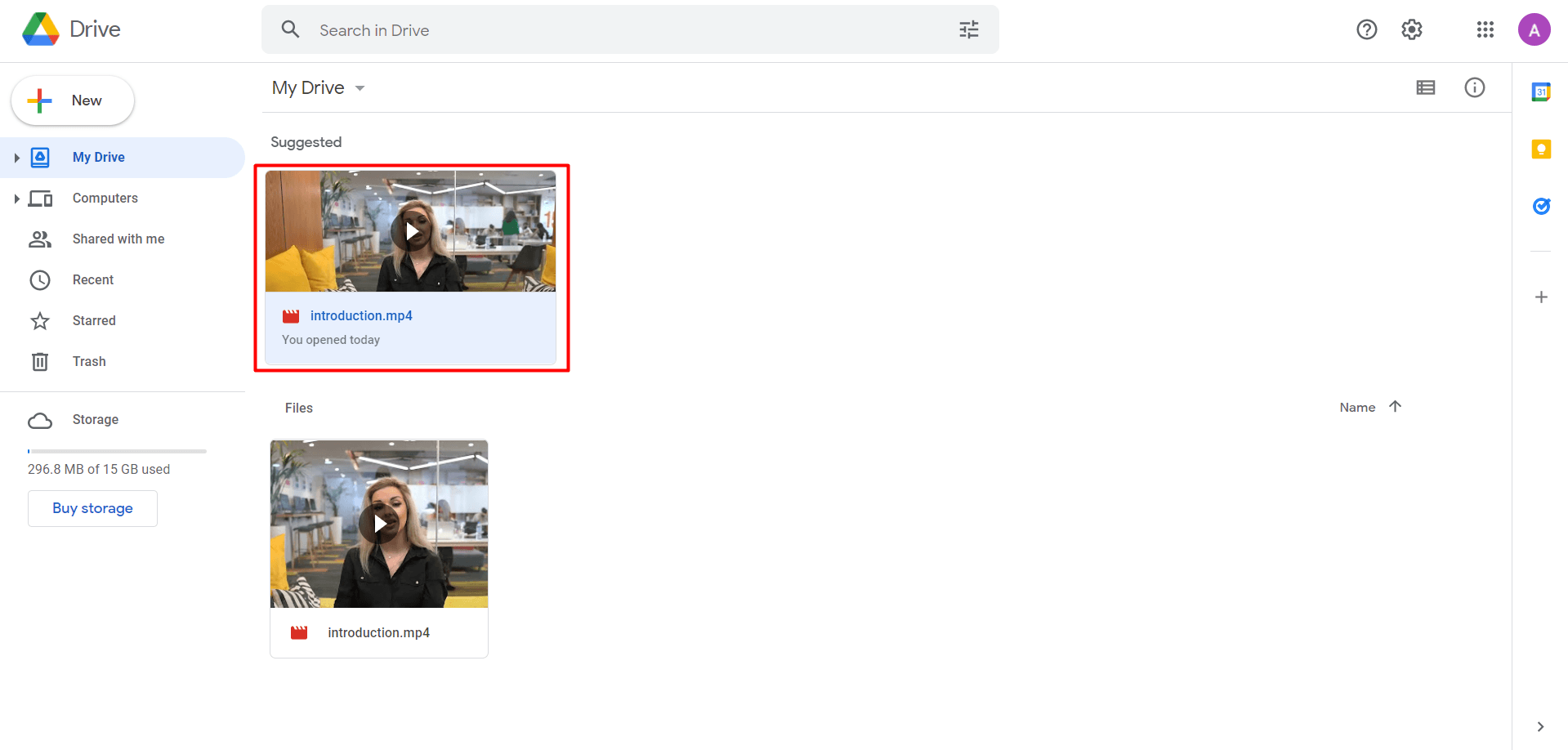
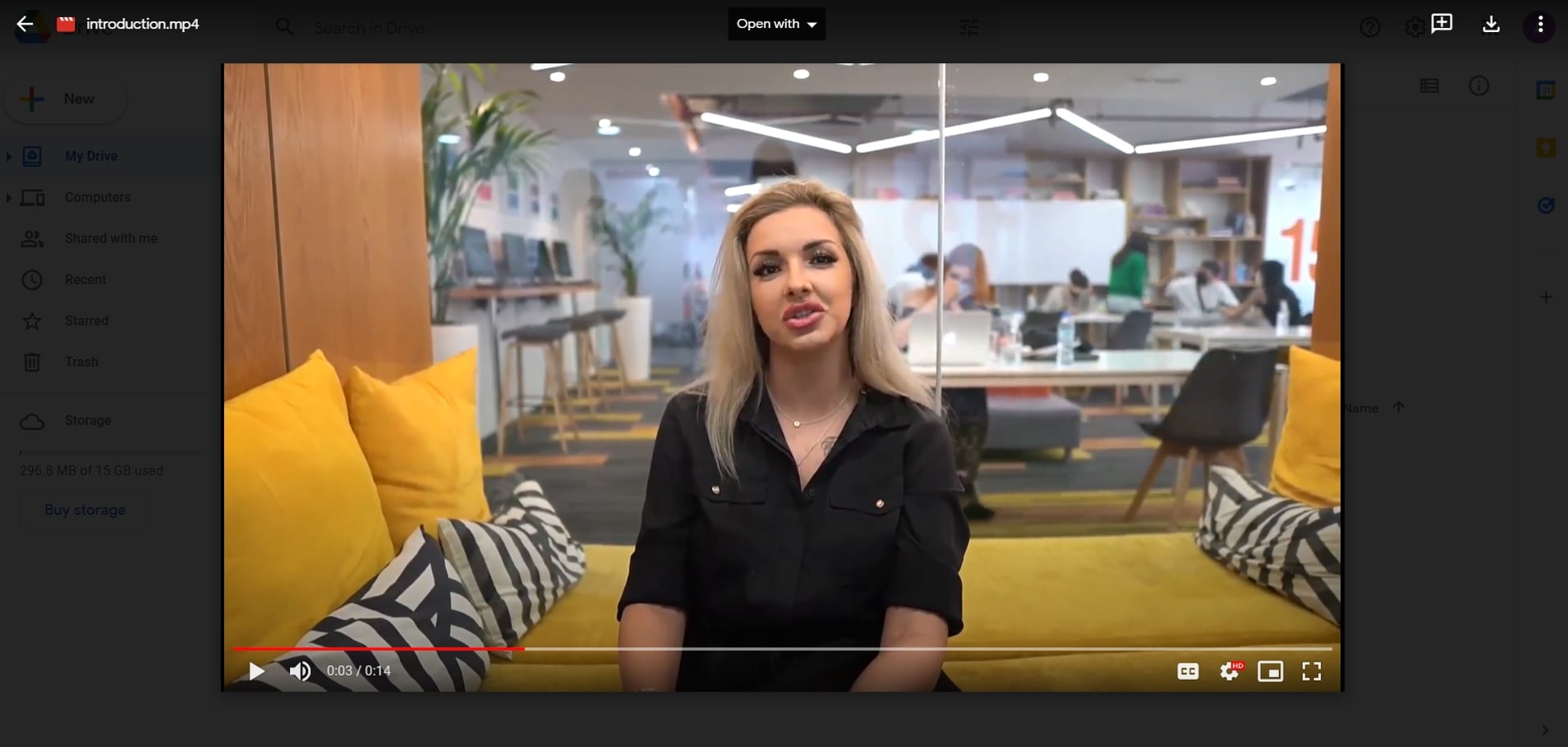
1. In Google Drive, double-click to open the video that you want to add to the quiz
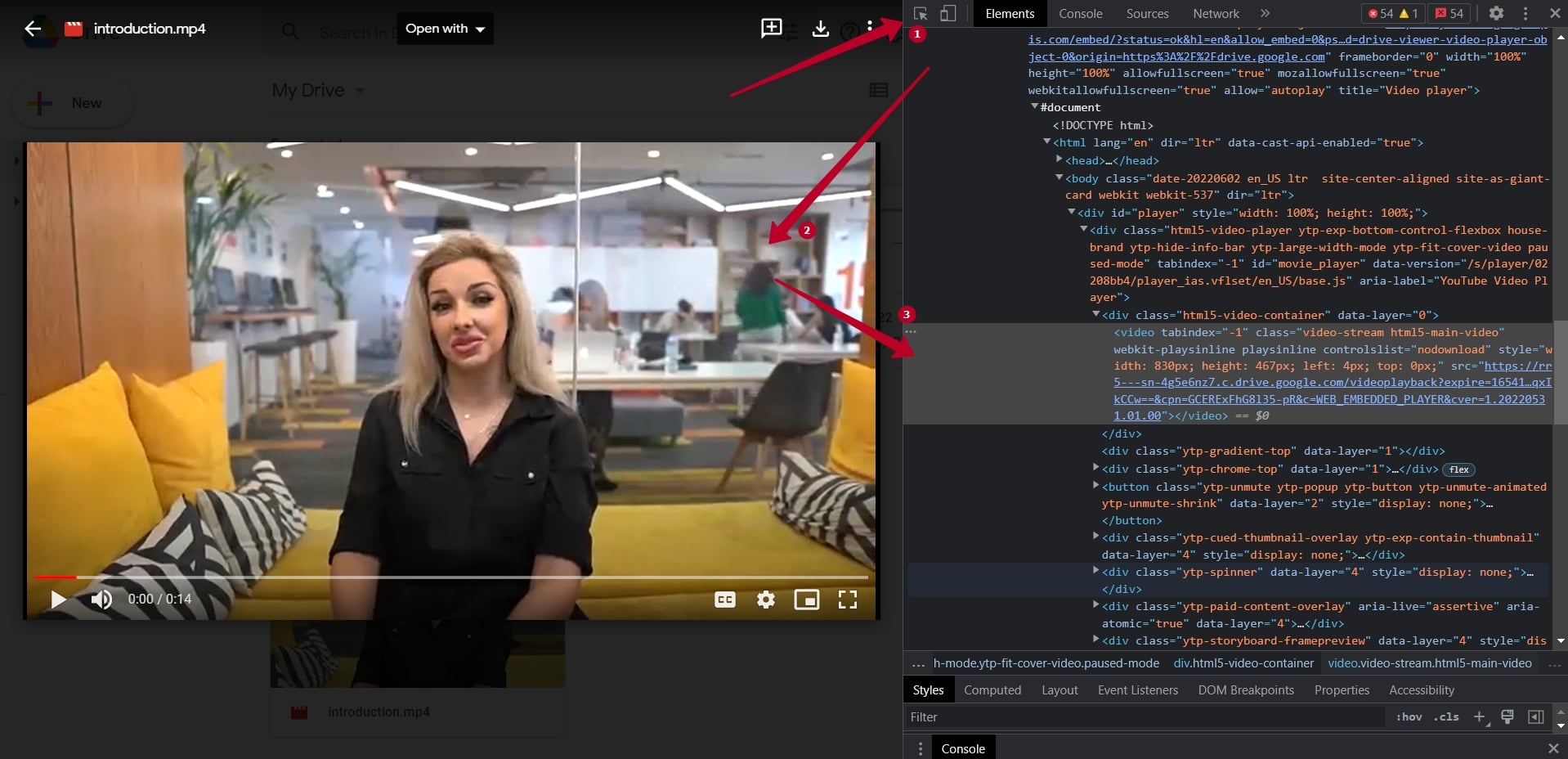
2. After that, open the Elements panel. You can use the following keyboard shortcuts
-> for Windows: Ctrl + Shift + C -> for MacOS: Command (or Cmd) ⌘ + Option (or Alt) ⌥ + С
3. Click on the element selection icon (1) on the page and click on the video itself on the left (2**)**. The element in the code will be automatically selected (3). The link you need will be inside this code. Double-click on the highlighted lines of code and copy the link
4. Paste the link in the quiz editor and don’t forget to Publish the quiz
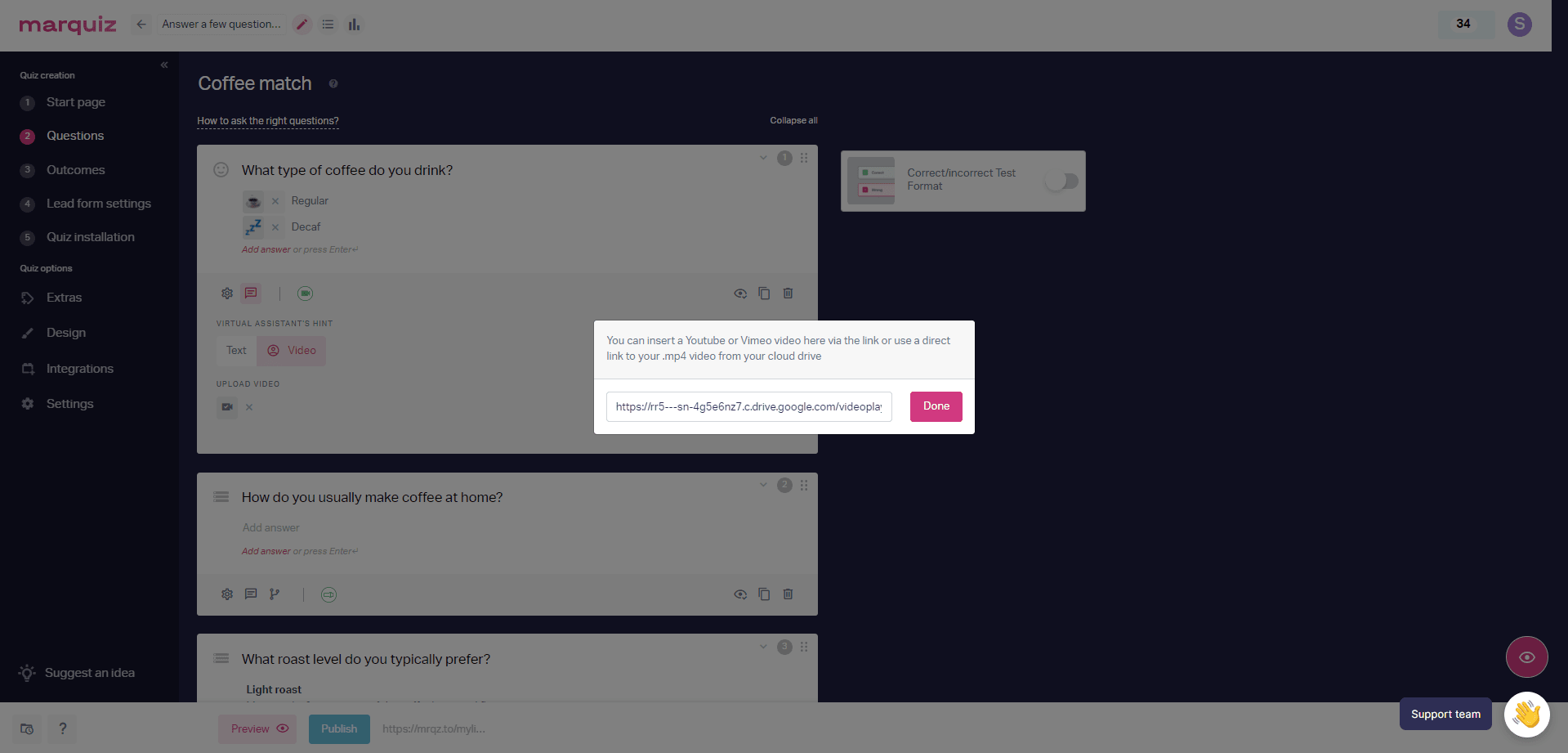
And it’s done**!** You can use the link both in videos in the quiz (on the start page, in questions/outcomes) and for the video consultant 🙂
Video instruction: