Discounts in a quiz
How to set up a discount in a quiz
A quiz discount highlights the benefit as the visitor answers the quiestions and motivates them to complete the quiz and provide their contact details.
How to set up a percentage or fixed discount
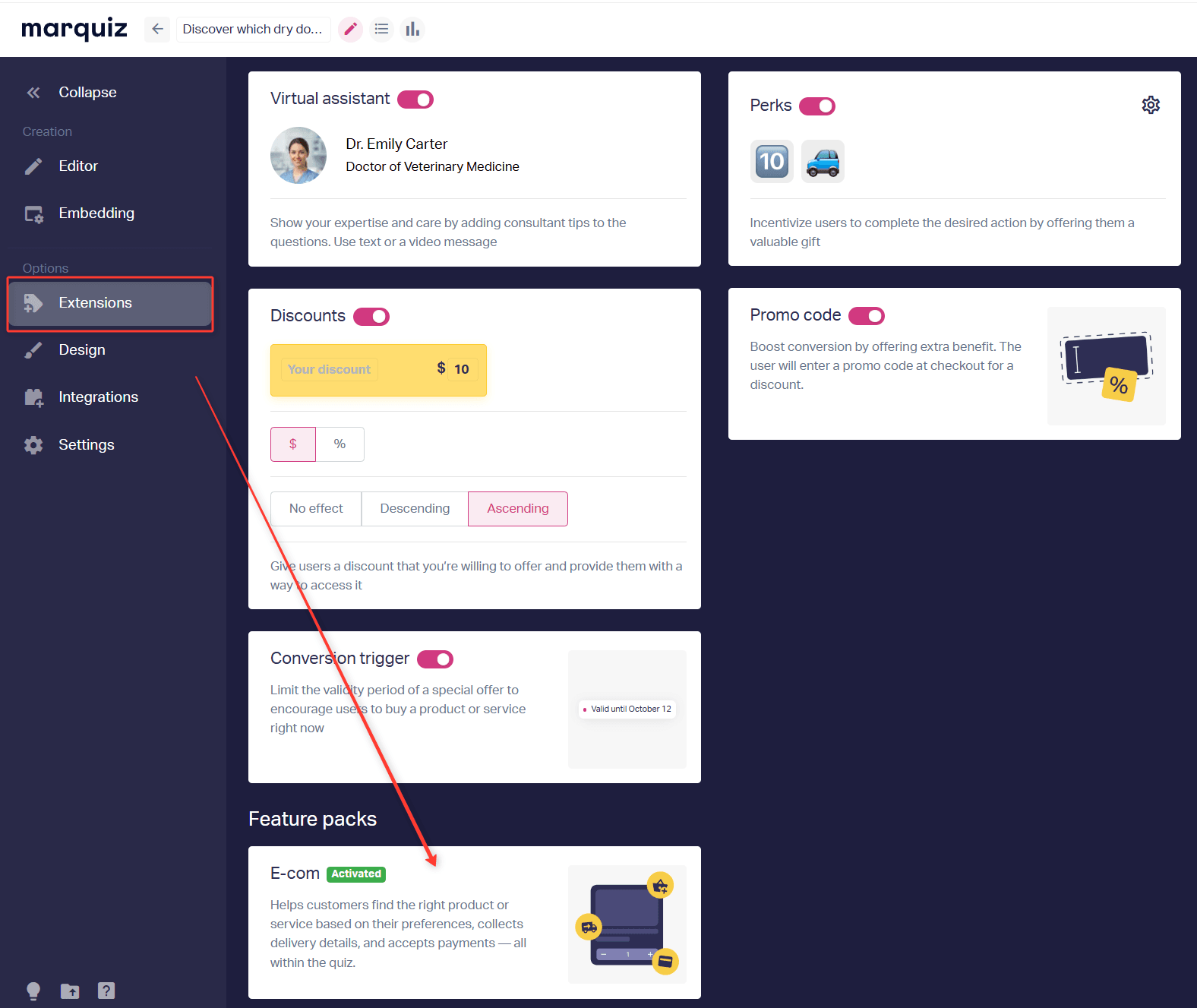
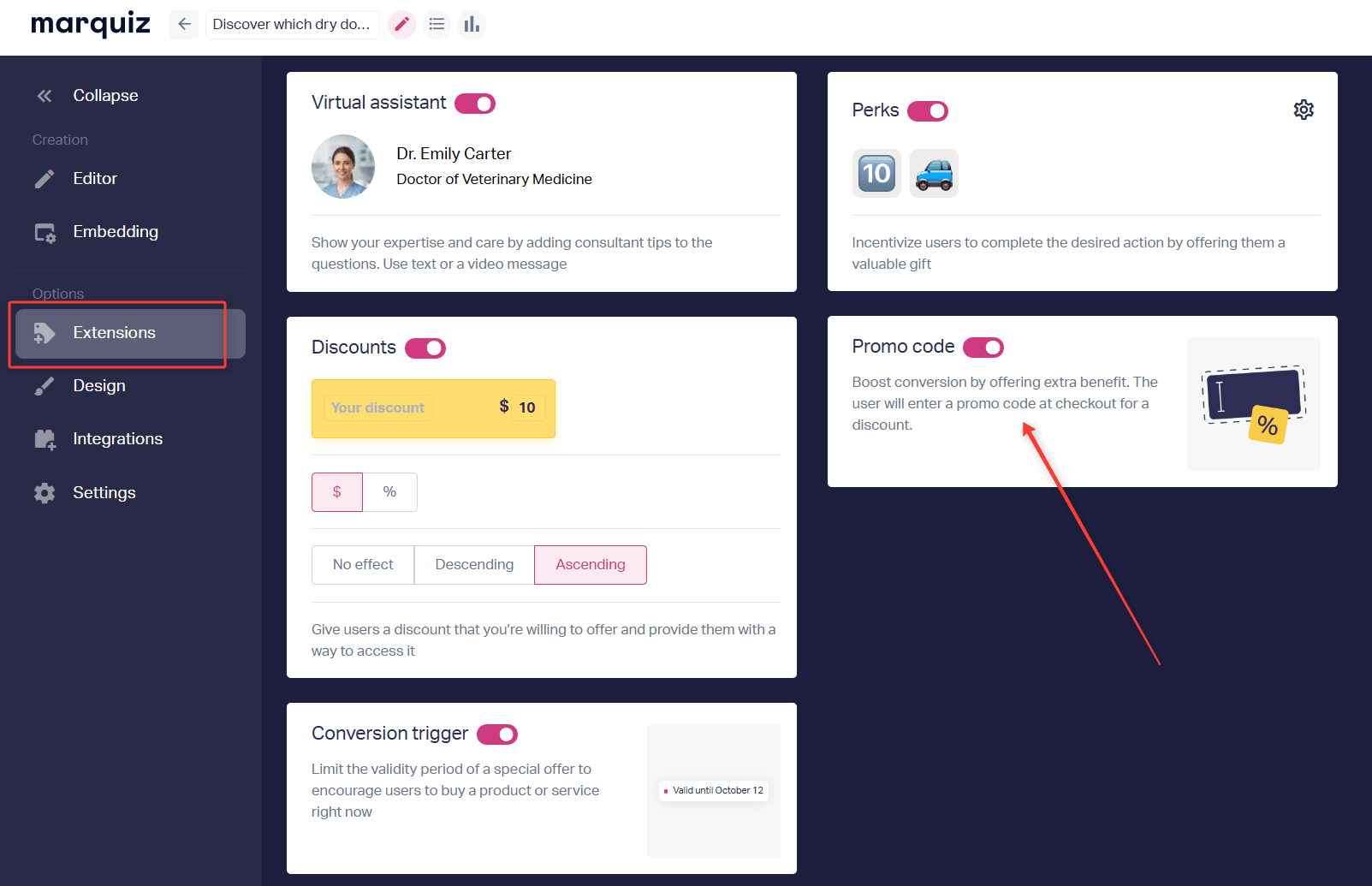
1. Open the quiz and go to Extensions.
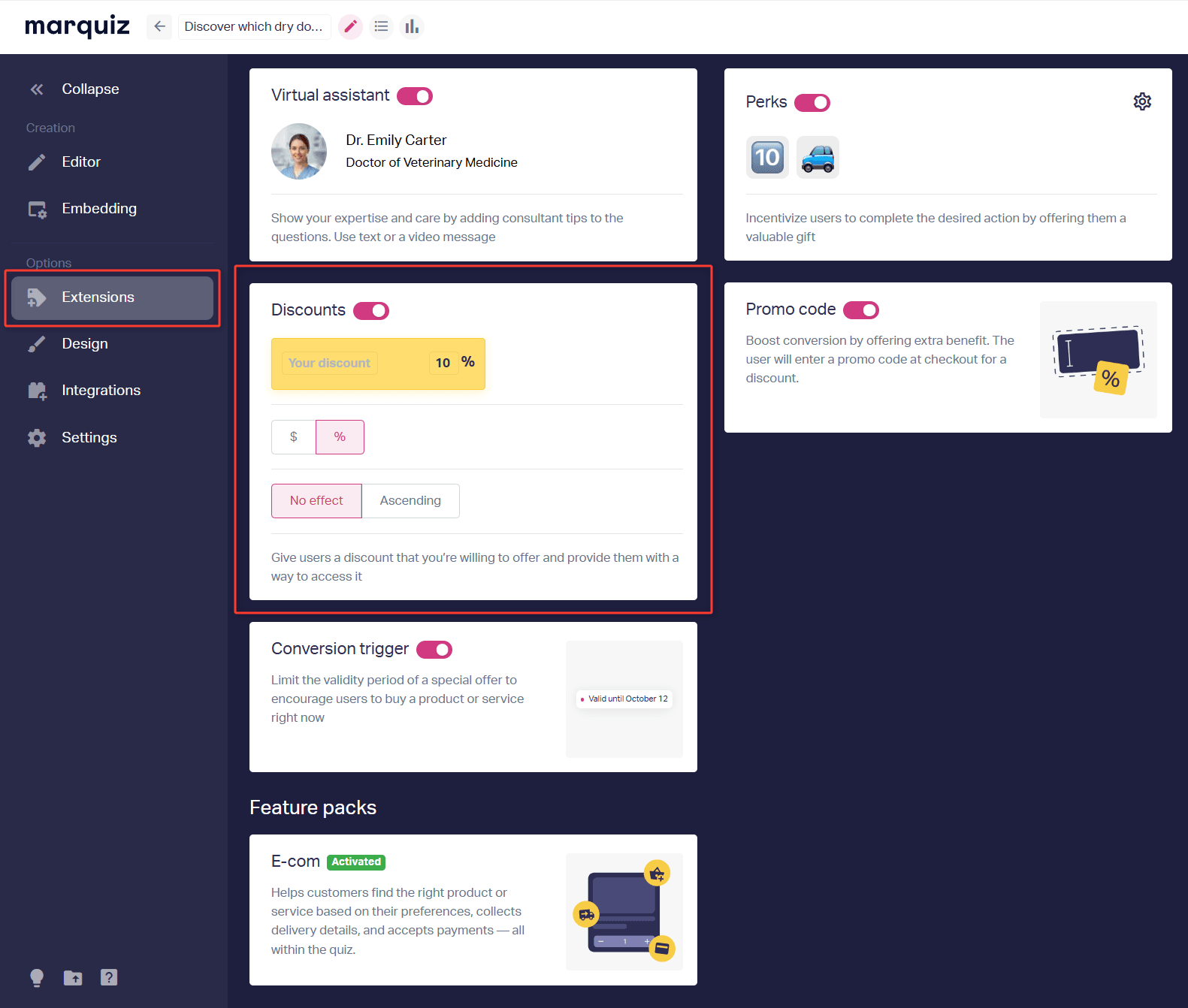
2. Turn on the Discounts toggle and choose the type: percentage or fixed amount.
3. If you chose a fixed amount and want it to change during the quiz, select a growing discount — it increases as the visitor moves to the next question. For the opposite effect, select a melting discount — it decreases as the visitor goes through the quiz.
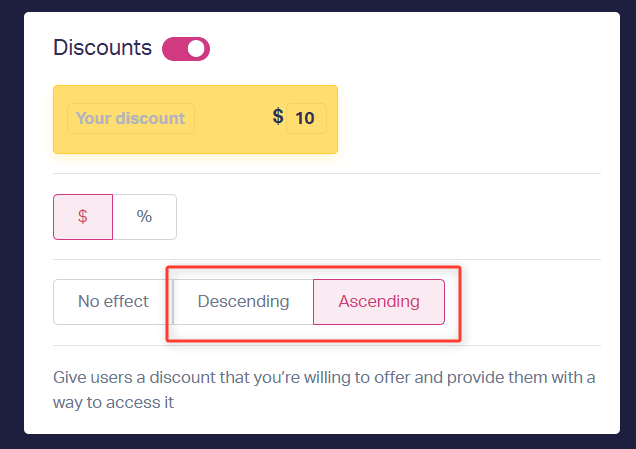
4. If you do not need an effect, select No effect — the visitor sees the full discount value at every step of the quiz.
Showing the discount on a result or product card
5. If needed, set a separate discount on the result card. This works when the result has a price.
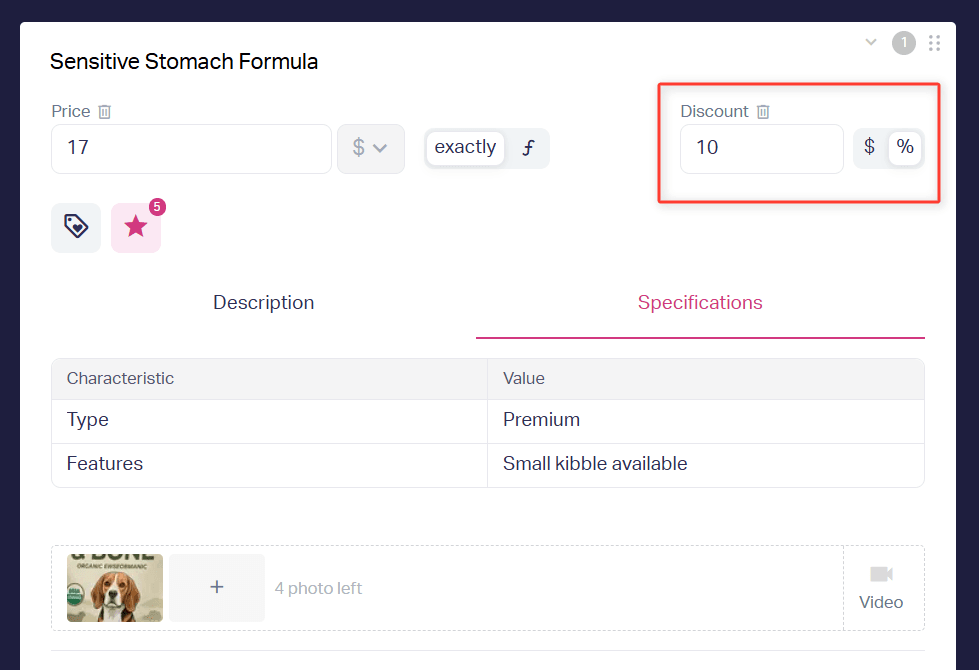
A discount on a result or product card applies only to that card and is calculated from the price on that card.
How the quiz discount and the result card discount work together
If the result card discount is:
- lower than the quiz discount, only the quiz discount is applied to the result. In the questions, the visitor sees information from {main discount size}
- higher than the quiz discount, the result card discount is applied to the result. In the questions, the discount size is shown up to {main discount size}
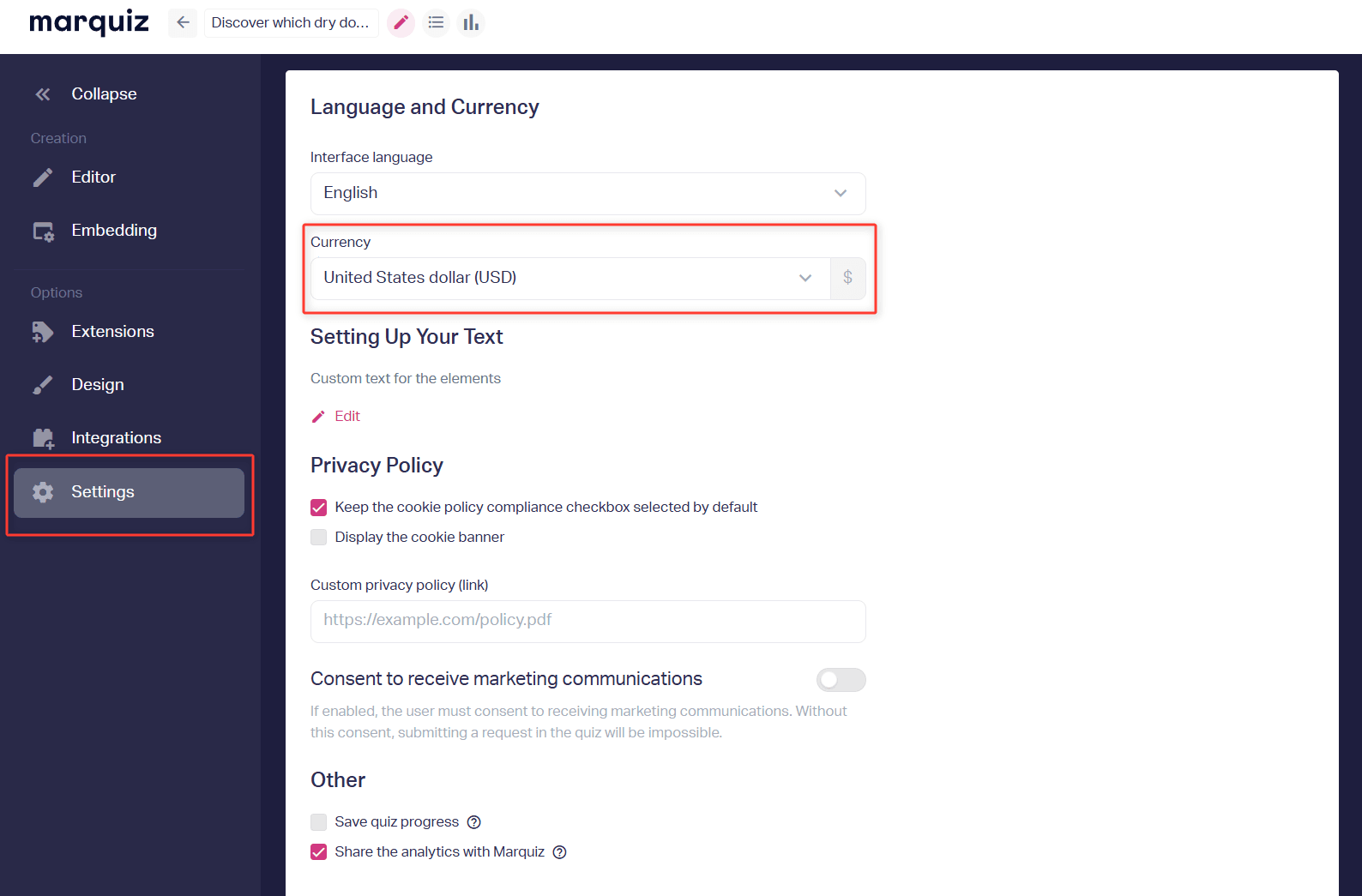
The currency for a fixed amount discount comes from Settings — this is the currency of the whole quiz. You cannot remove it from the quiz. If you do not need the currency symbol, enter your own label in the currency field. To hide the currency entirely, put a space in this field.
6. Save your changes and publish the quiz.
Once you publish the quiz, the visitor sees the discount in the questions, on the contact form, and on the Thank you page.
Showing the discount in the cart
This discount applies to the total value of the products in the cart and does not apply to shipping. The discount is available when the “E-com” package and Cart are enabled in the quiz. You set it up in Results or Products.
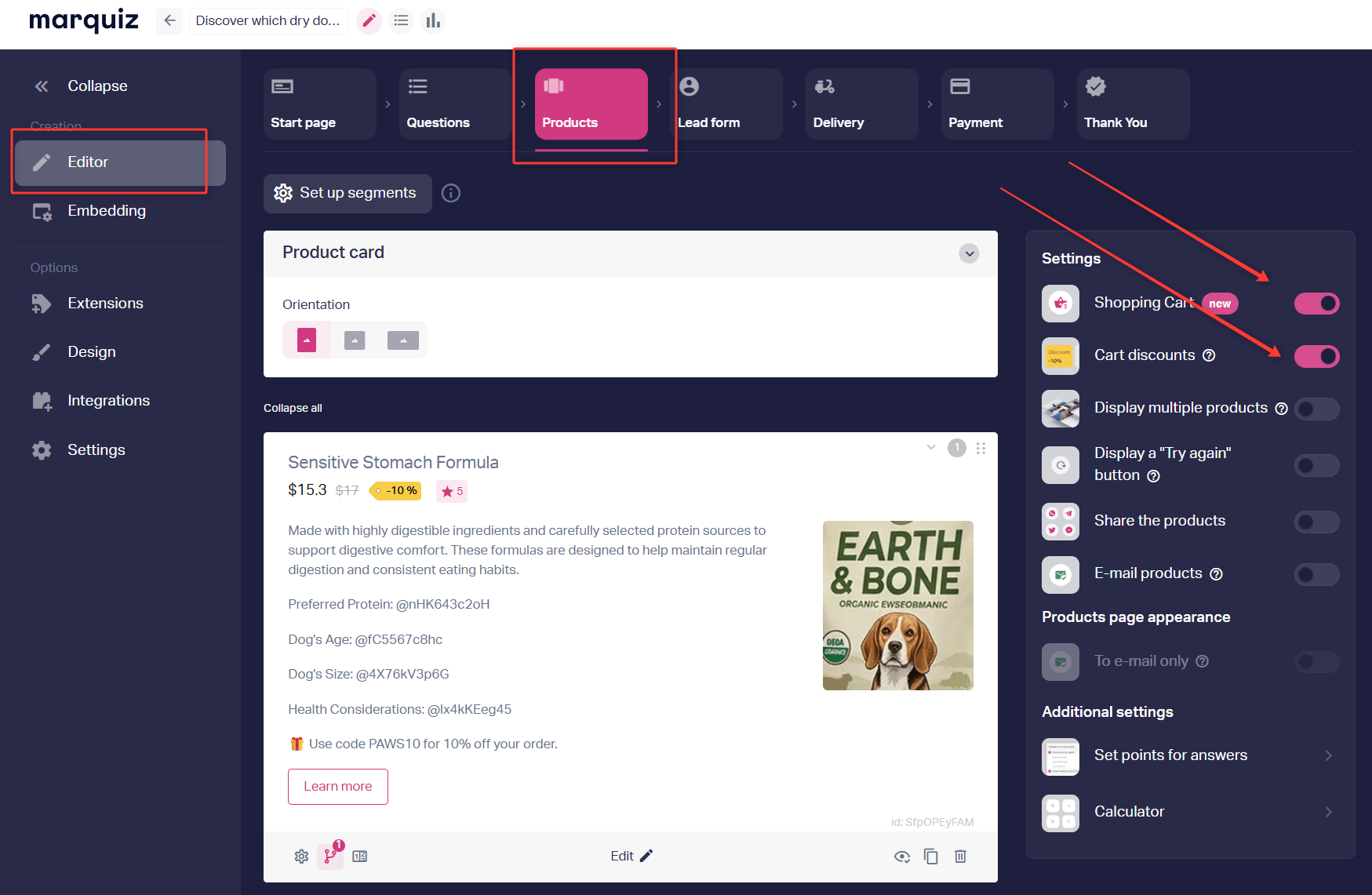
1. Enable the “E-com” package and the cart.
2. Open Results or Products and go to Cart discounts.
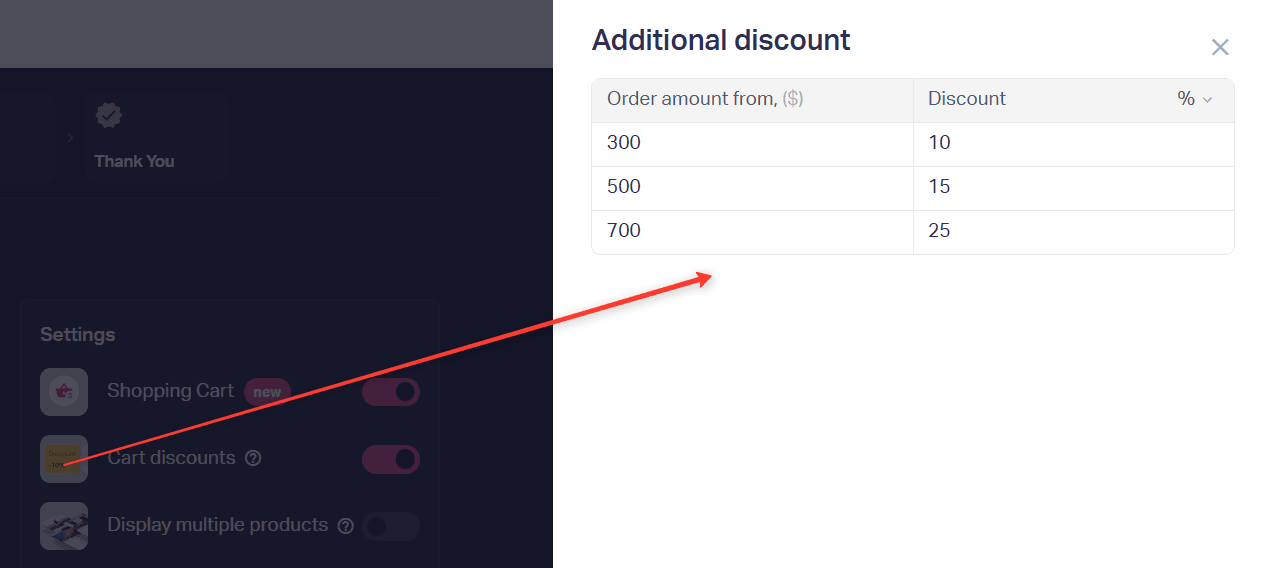
3. Set the thresholds: the cart total (“Order amount from”) and the discount — either a percentage or a fixed amount. You can add several levels, for example, three.
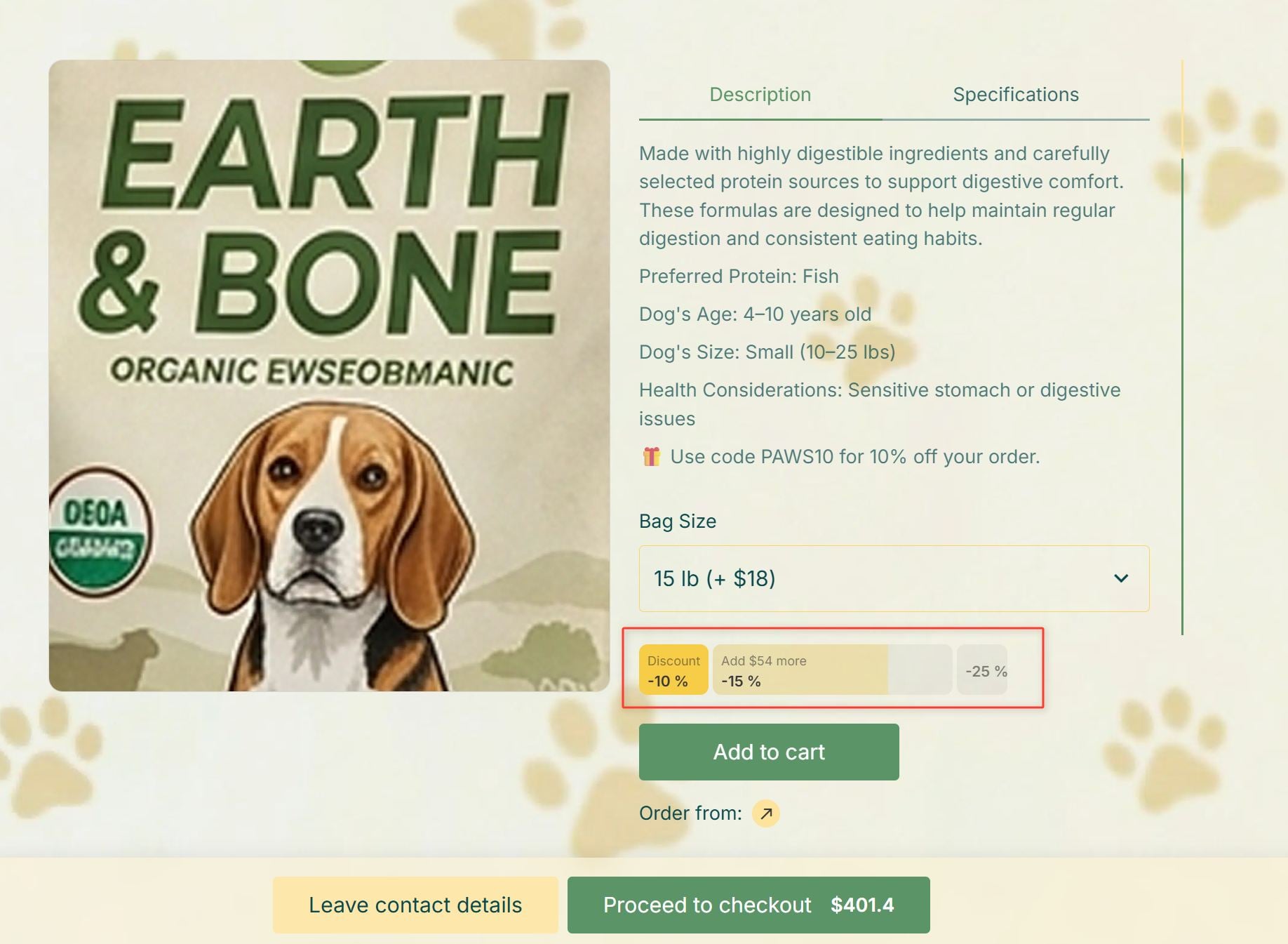
The cart discount is calculated from the cart total after the quiz discount and the result/product card discount.
Example. The quiz discount is 10% (applied to each product).
The cart discount is $30 for orders of $200 or more.
Product prices are $100 and $200.
After the quiz discount (10%) applies, the prices are $90 and $180.
Both products are added to the cart, one each: $90 + $180 = $270.
The cart discount applies because $270 > $200. So, $270 − $30 = $240.
If you need a price per item for the receipt, split the cart discount across the products.
• For a fixed amount discount, take the product’s share of the current cart total and multiply it by the discount. In the example above, the final price of the first product will be: 90 − (90 / 270) × 30 = $80. The final price of the second product will be: 180 − (180 / 270) × 30 = $160.
• For a percentage discount, simply subtract the percentage from the product price.
Promo code discount
You can combine a cart discount with a promo code. The cart discount is applied first, followed by the promo code discount.
A promo code discount applies to the total of products in the cart and does not apply to shipping. The visitor can apply only one promo code.
To set up a promo code in the quiz:
1. Open Extensions and enable the Promo code toggle.
2. Add a promo code: the code itself, for example SALE, and the discount size — percentage or fixed amount. You can create several promo codes; only one will apply in the order.
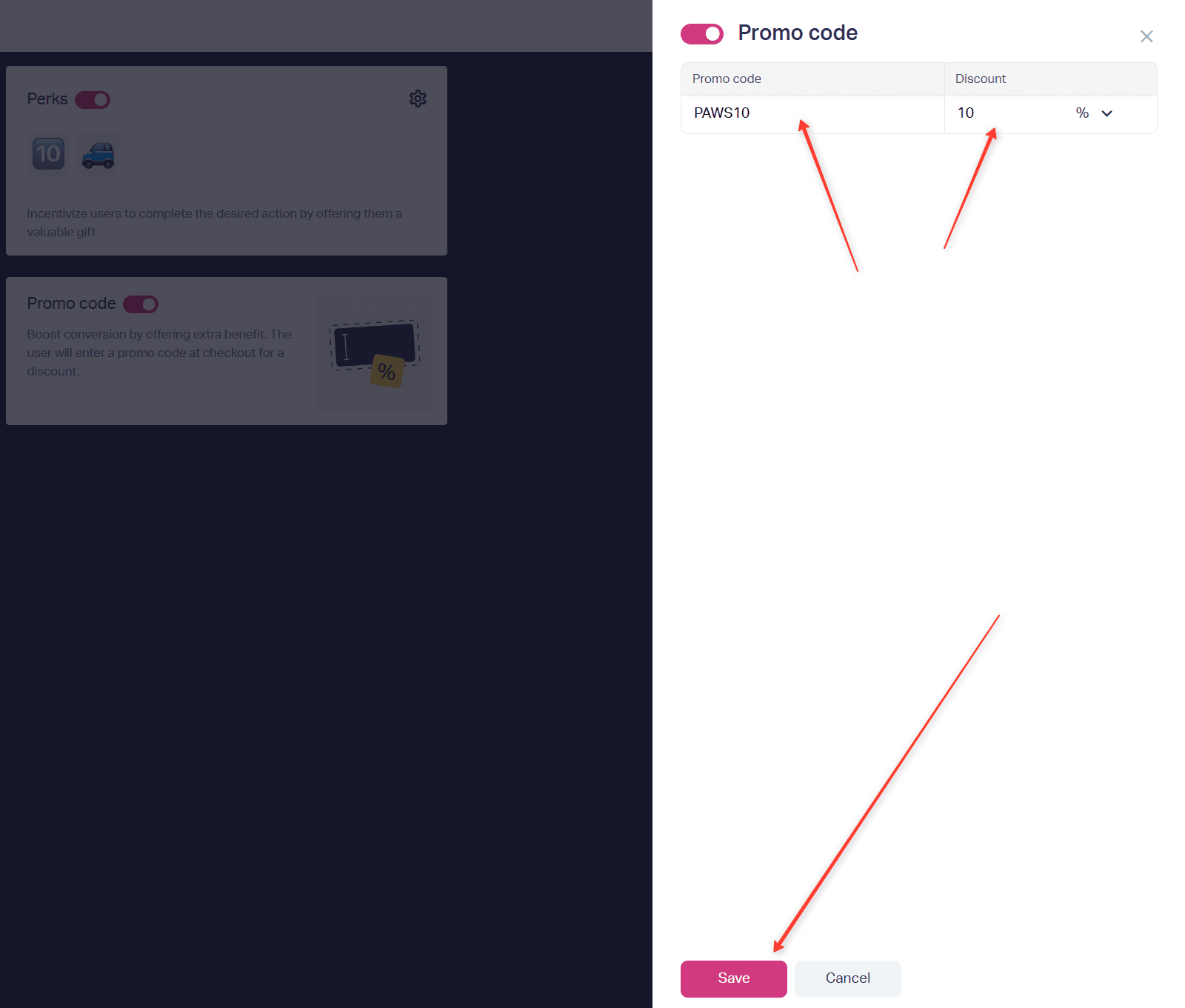
3. Save your changes and publish the quiz.
The promo code discount is calculated based on the cart total after the quiz discount, the result/product card discount, and the cart discount have been applied.
Example. Quiz discount is 10%. Cart discount is 20% for orders of $2,000 or more. Promo code is 10%. Products cost $1,000 and $1,500. After the quiz discount is applied, they cost $900 and $1,350. The cart has two of the first product and one of the second: 900 × 2 + 1,350 = $3,150. The total is above $2,000, so the cart discount applies first: 3,150 × 80% = $2,520. Then the promo code: 2,520 × 90% = $2,268.
If you need a price per item for the receipt, split the cart discount and the promo code proportionally to the product price. For a fixed amount discount, use the product’s share of the cart total. For a percentage, subtract the corresponding percentage from the item price.
Example for the receipt. The cart has three products at $100 and one at $200, total $500. The cart discount is $20 from $300, the promo code discount is $50. First the cart: 500 − 20 = $480. Then the promo code: 480 − 50 = $430. The $100 item: 100 − (100 / 500) × 20 − (100 / 500) × 50 = $86. The $200 item: 200 − (200 / 500) × 20 − (200 / 500) × 50 = $172.
That’s it. The visitor sees the quiz discount in the questions, the product discount on the result card, and the cart discount and promo code in the cart at checkout.
If the discount does not appear, check that the corresponding toggle in Extensions is on and refresh the published quiz. If that does not help, contact support via the chat.
You can also set up bonuses in the quiz. See the full guide in Perks in a quiz.