How to set up Google Analytics
A step-by-step guide on setting up your quiz with Google Analytics
Important Notes Before Setup
-
Data discrepancies: If Marquiz data doesn’t match your Google Analytics dashboard, visitors may be using browser extensions (e.g., ad blockers) that interfere with tracking.
-
Safari limitations: Safari blocks cross-site tracking by default. For accurate tracking:
-
Disable “Prevent Cross-Site Tracking” in Safari settings (Mac/iPhone).
-
Note: This is a browser-level restriction; Marquiz cannot bypass it.
-
Google Analytics 4 (GA4) Integration
-
Get your Measurement ID:
-
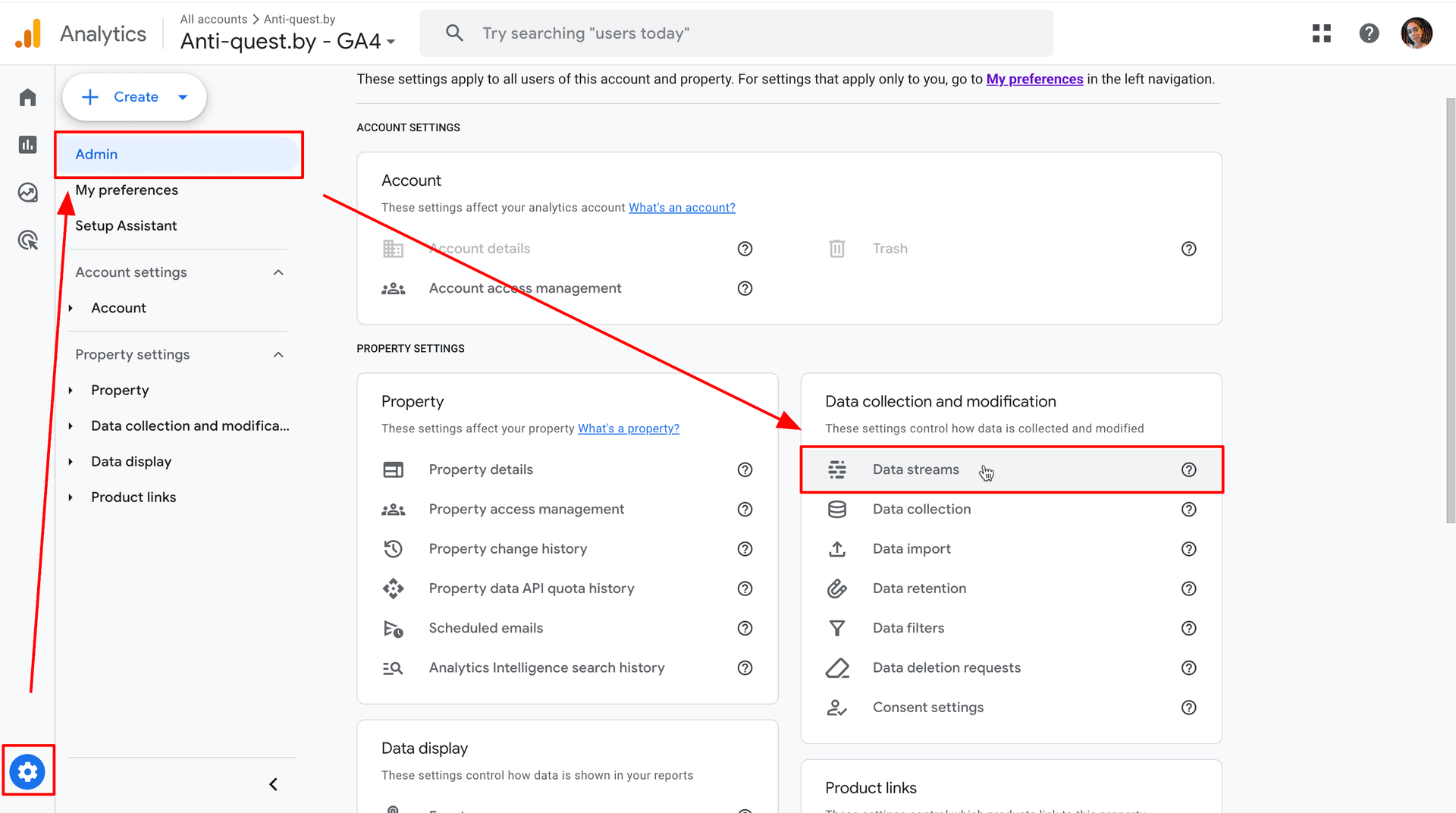
Go to your Google Analytics dashboard → Admin → Data Streams.
-
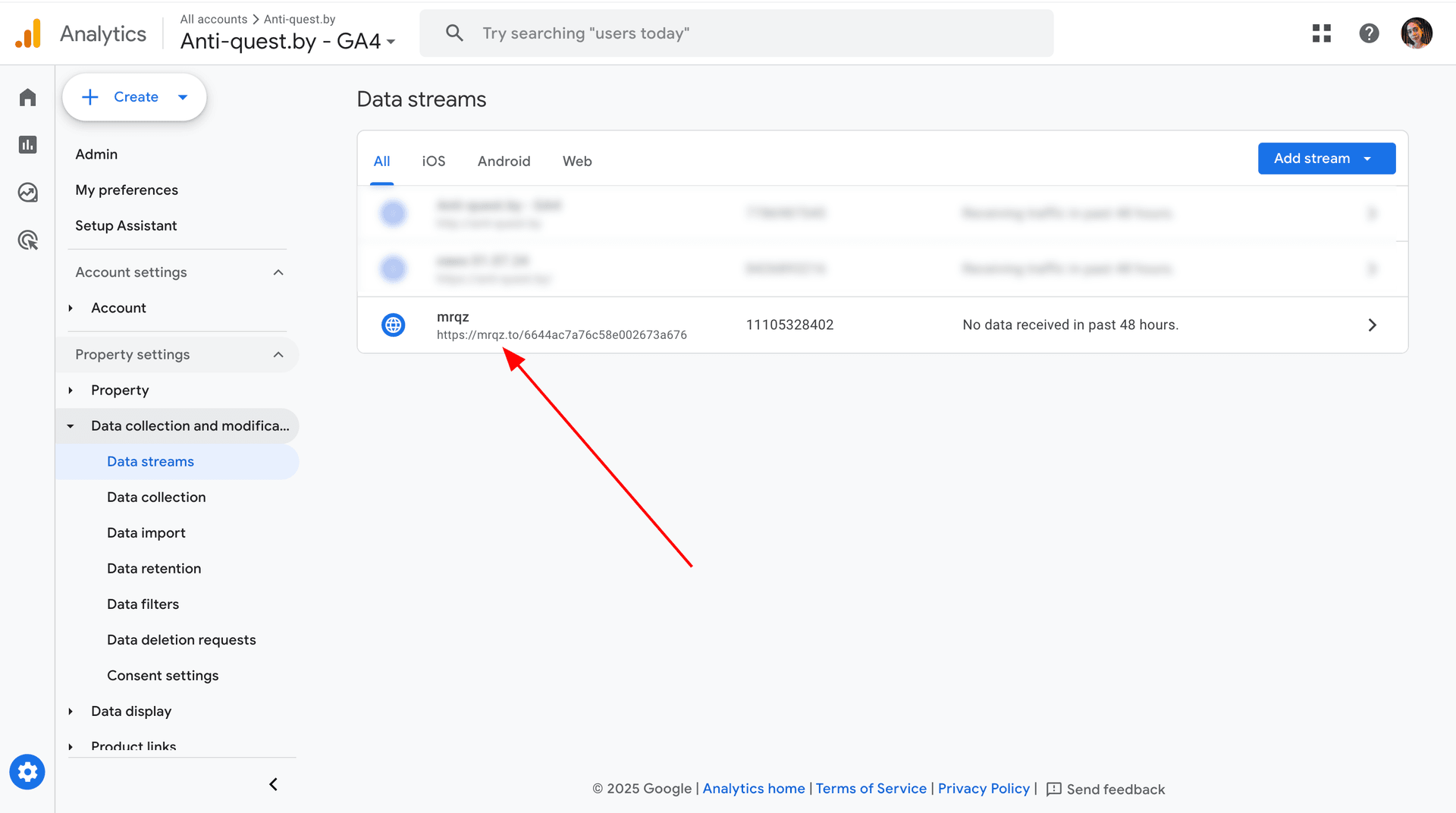
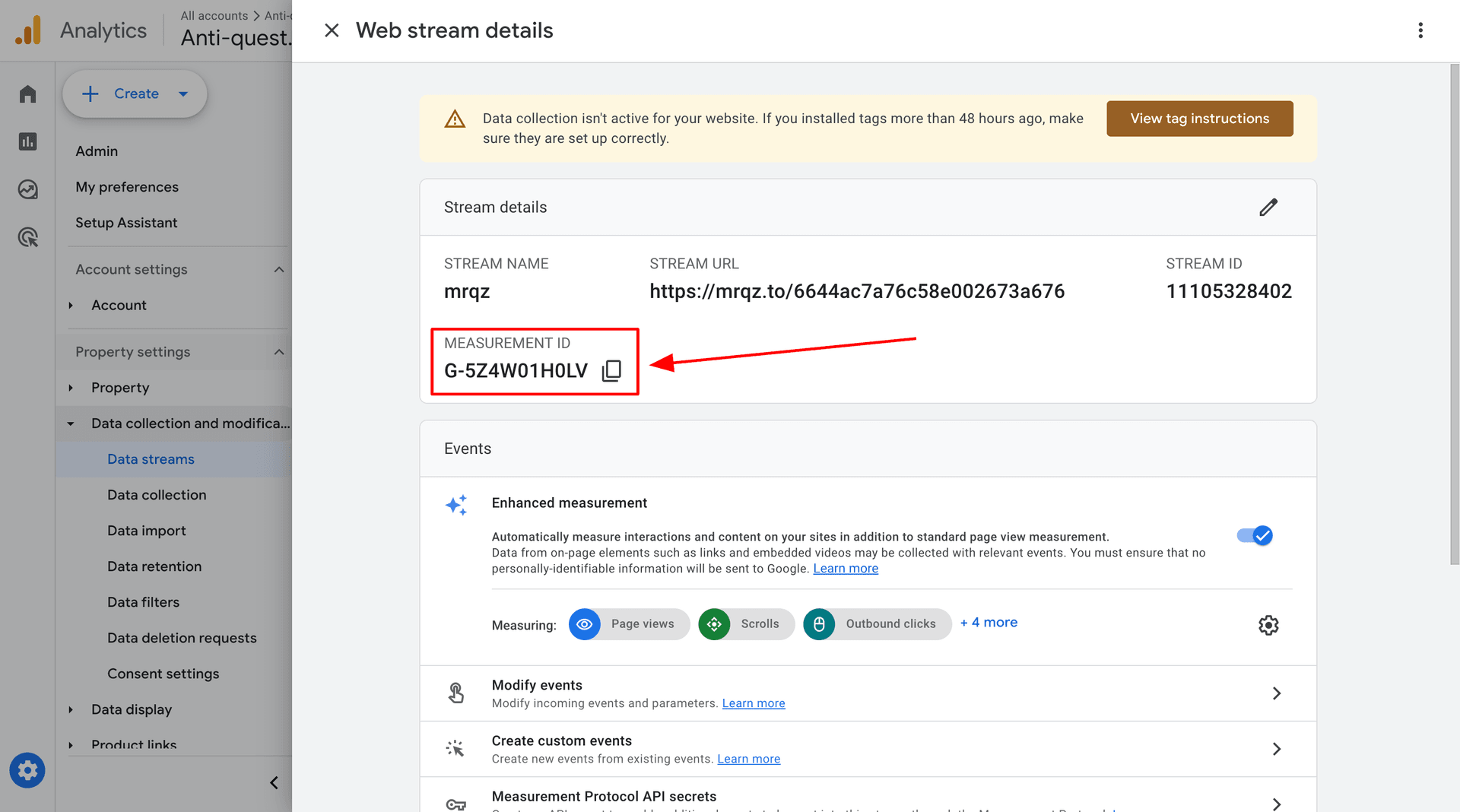
Select your stream and copy the Measurement ID.
-
-
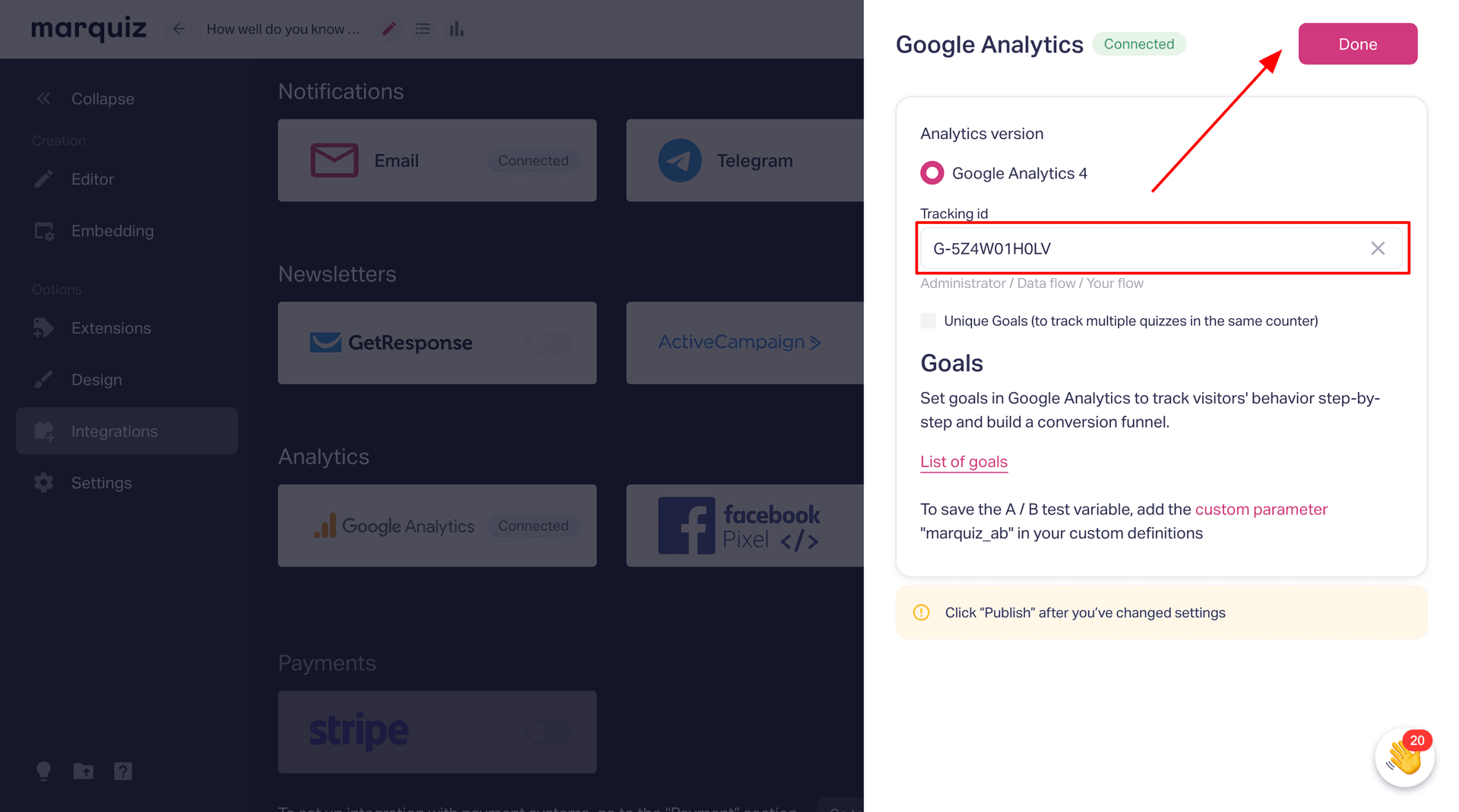
Paste the ID into Marquiz:
-
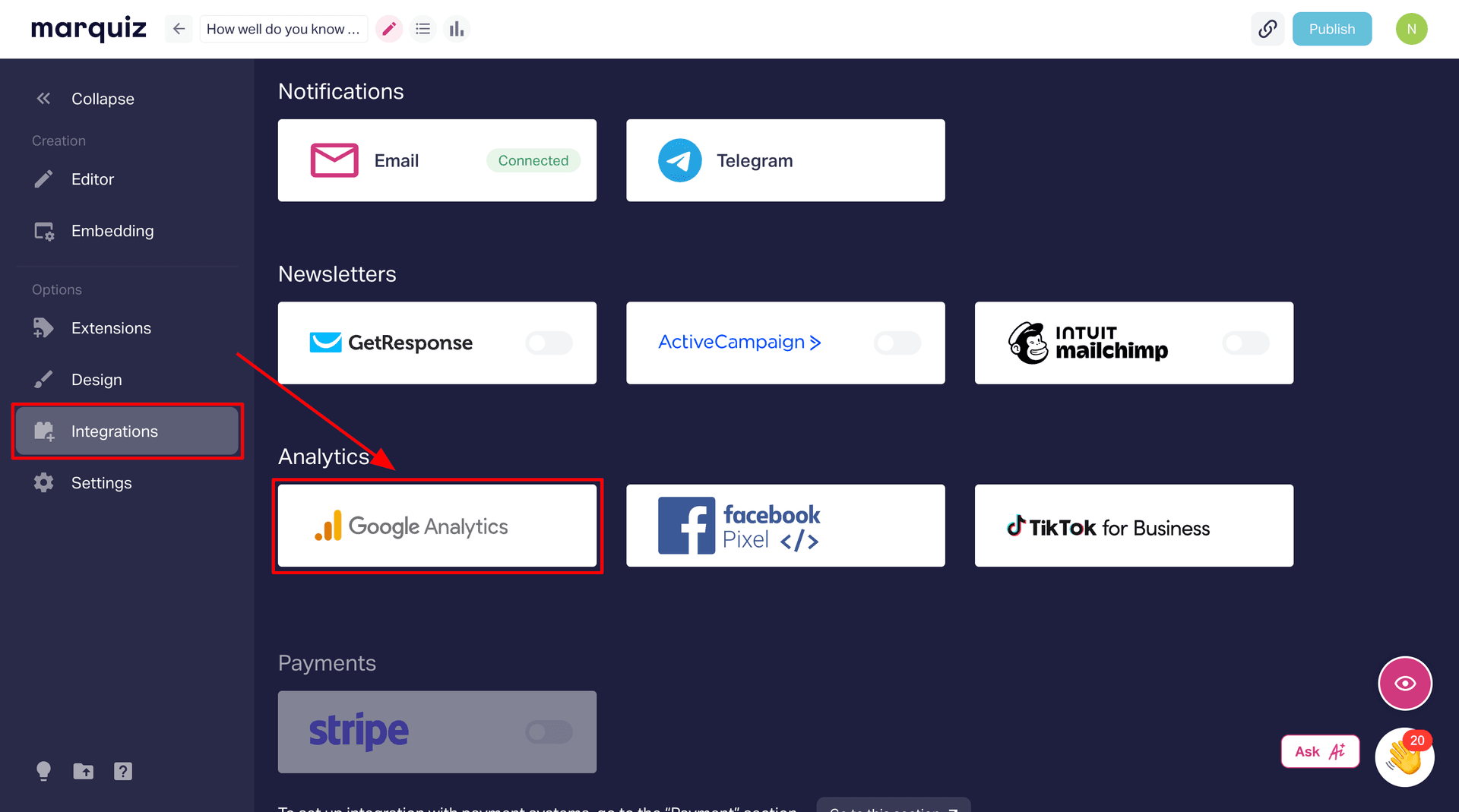
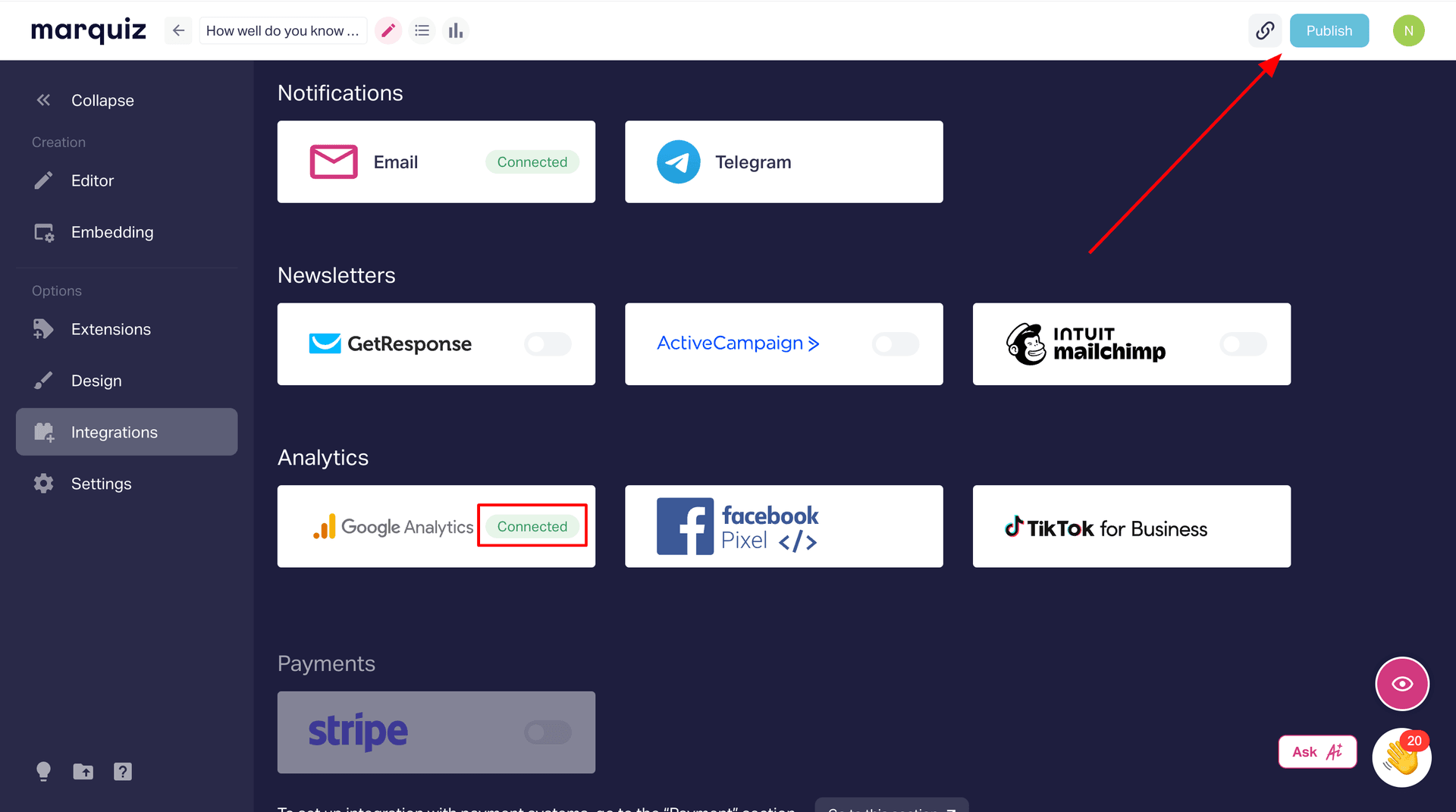
In your quiz editor, navigate to Integrations → Google Analytics.
-
Select Google Analytics, paste the Measurement ID, and click Publish.
-
Verify & Debug Your Setup
-
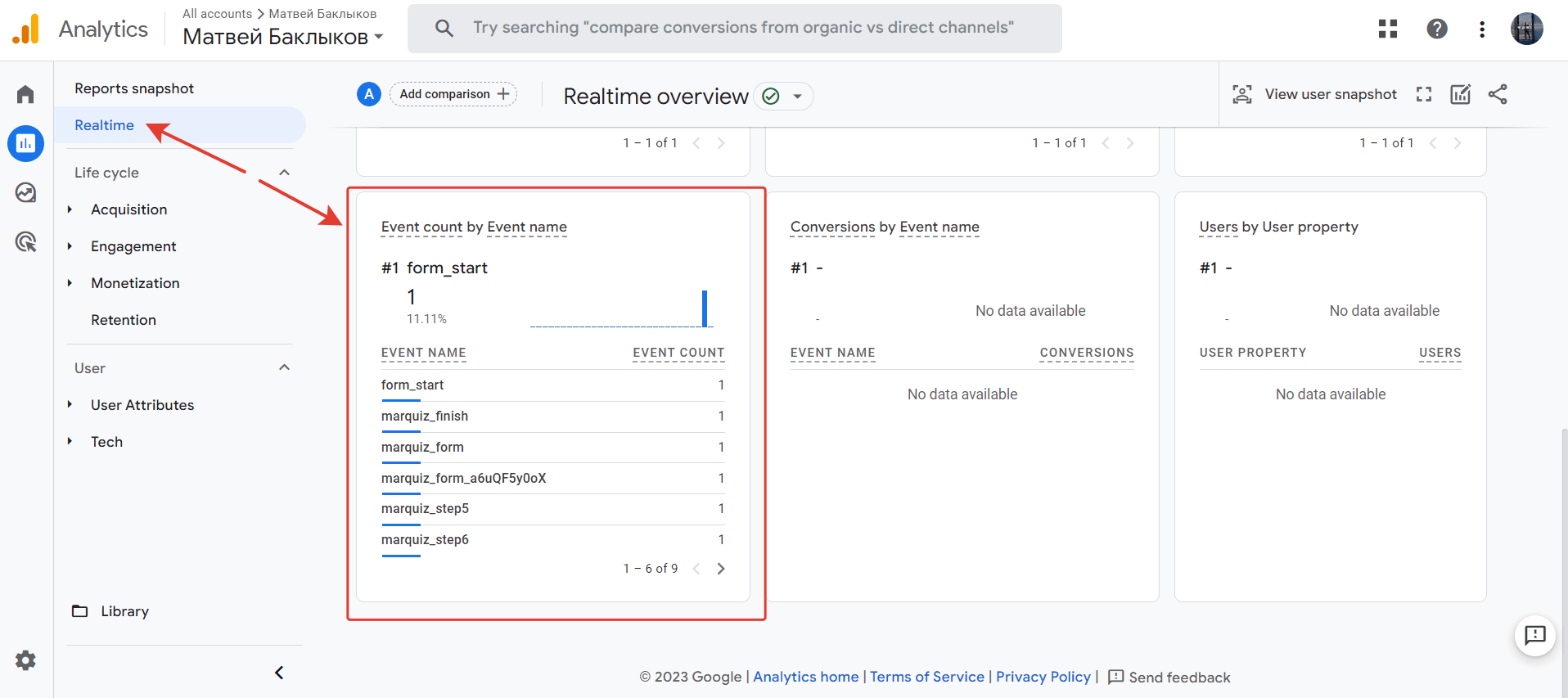
Realtime Report:
-
Go to GA4’s Realtime tab to check incoming events.
-
Note: Data may take 1–2 minutes to appear.
-
-
DebugView (Recommended):
- Enable GA4 Debug Mode for detailed event tracking during testing.
Quiz events, available for tracking:
- User has opened the quiz: marquiz_start
- User has clicked the button on the start page: marquiz_startquiz
- User has clicked the phone number on the start page: marquiz_phone
- User has seen the quiz result: marquiz_result (this goal is active only in case you have quiz results enabled)
- User has reached the lead form: marquiz_form
- User has filled out the lead form (step 1): marquiz_contacts1 (this goal is active only in case you have 2-step lead form enabled)
- User has filled out the lead form (step 2): marquiz_contacts2 (this goal is active only in case you have 2-step lead form enabled)
- User has seen the “Thank You” page: marquiz_finish
- User has compled the question number N: marquiz_stepN (where N is the question number in the sequence, i.e. marquiz_step2)
- User successfully paid for the product — marquiz_payment_success. (this event triggers only if you have a shopping cart enabled in the quiz and payment connected)
- User failed to pay for the product — marquiz_payment_fail. (this event triggers only if you have a shopping cart enabled in the quiz and payment connected)
Advanced: Unique Goals for Multiple Quizzes
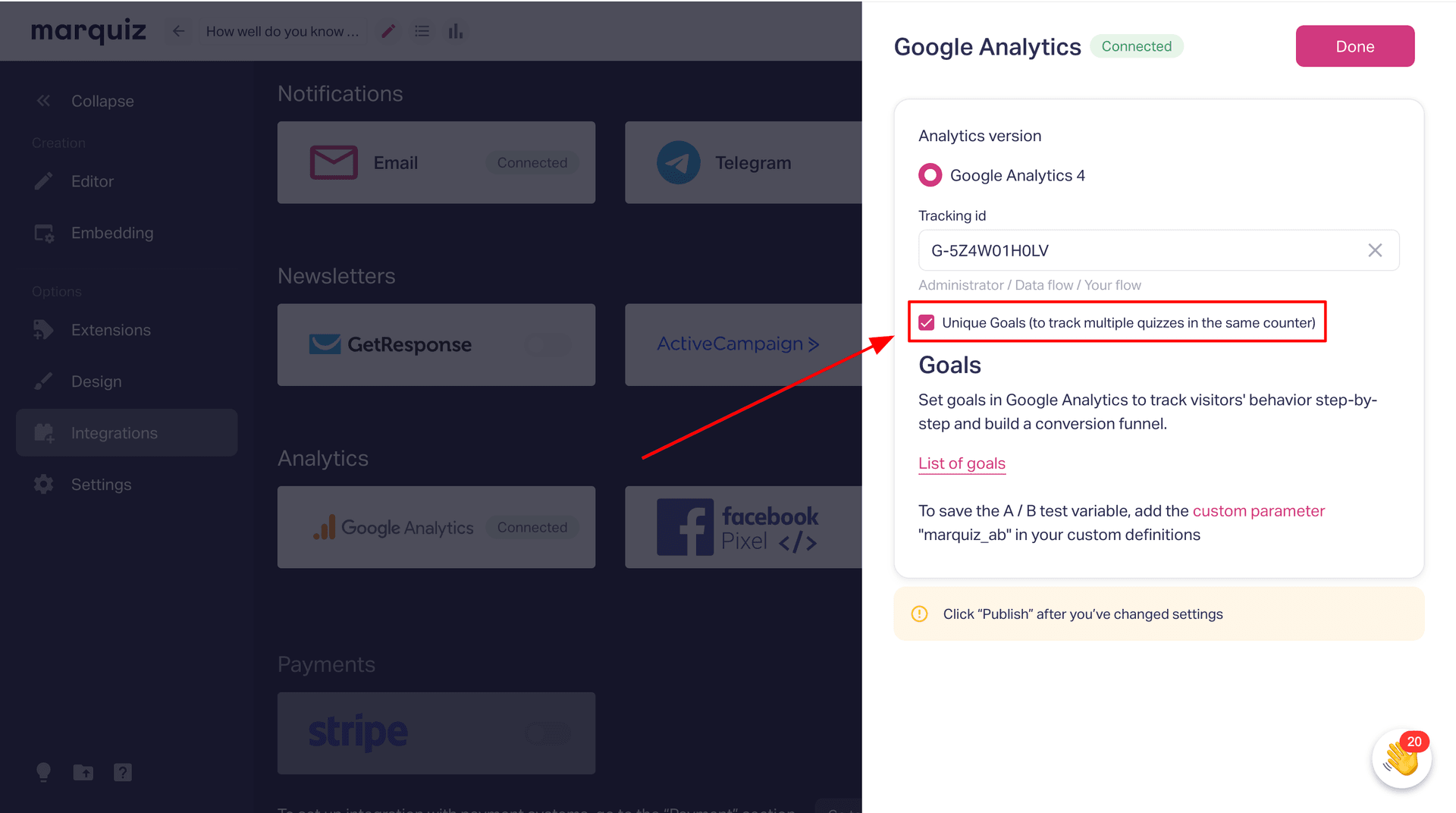
To track multiple quizzes under one GA4 property:
-
Enable Unique Goals in Marquiz.
-
Append the quiz ID to events (e.g., marquiz_start_5aa84f60ee90d200185234af).
Important notice: if you don’t see anything in your Events tab, for you’ll have to wait for 24 hours for event collection to take part.
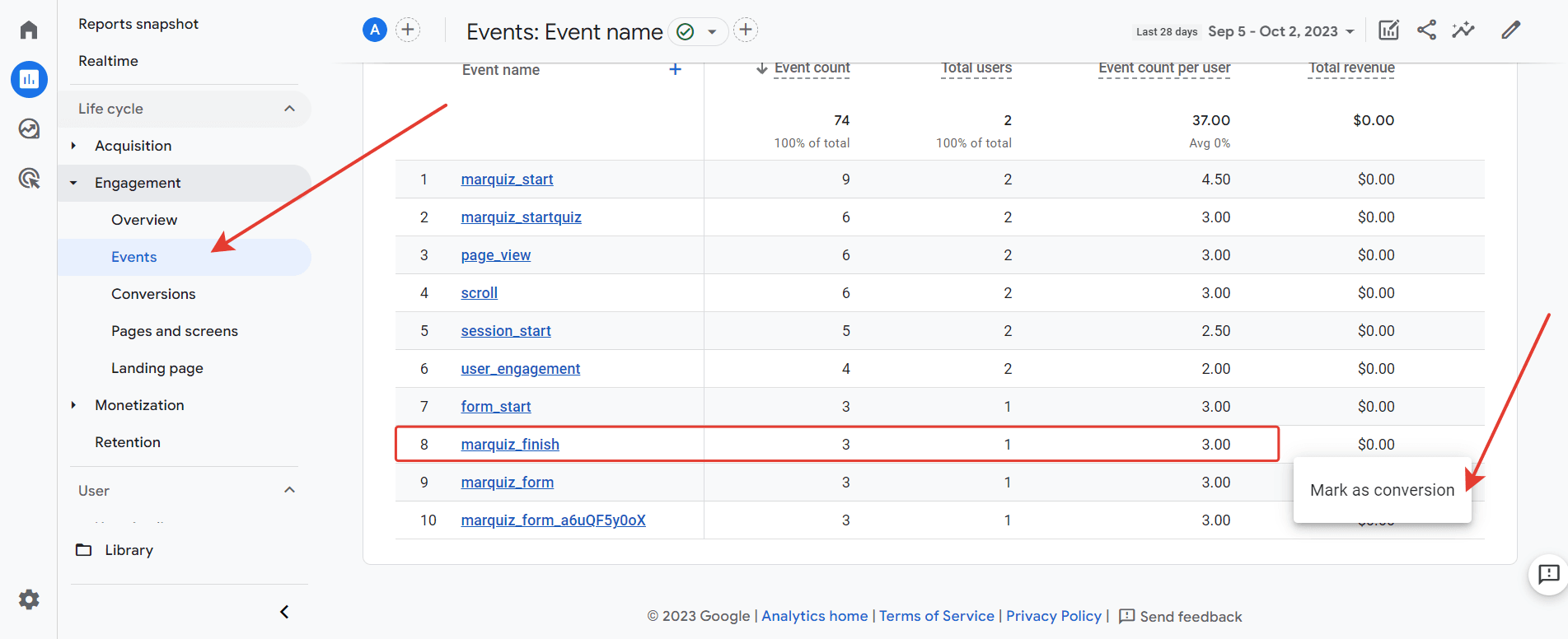
Google Ads Conversion Tracking
To track conversions:
-
Link your GA4 property to Google Ads (guide).
-
Exclude app.marquiz.io from Referral Exclusions in GA4 to avoid misattributed traffic.
Troubleshooting
-
No events in GA4? Wait up to 24 hours for data collection.
-
Need help? Contact support via the chat icon (bottom-right).